When you set up a game server on a Windows VPS and nobody can connect, the culprit is nearly always the same: the Windows firewall is blocking the port. Here is how to open it with commands, which is faster than clicking through menus and, more importantly, can be copied and pasted without mistakes.
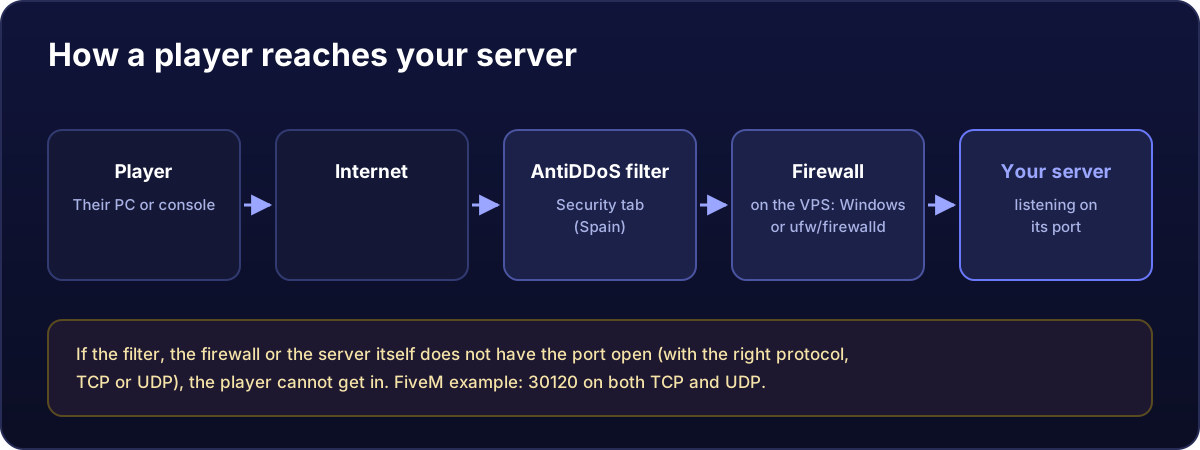
There is no router to configure on a VPS. Forget the "port forwarding" you will see in tutorials: that is for servers at home. Your VPS has its own public IP, so the only thing between your players and your server is the Windows firewall.
Open PowerShell as administrator
Connect to your VPS over Remote Desktop (we cover that here), right-click the Start button and pick Terminal (Admin) or Windows PowerShell (Admin). If it does not say admin, the commands will fail with a permissions error.
Opening a port: TCP and UDP, inbound and outbound
This example opens 30120; change the number and the name for yours. Paste the whole block at once:
$port = 30120
$name = "Game server"

New-NetFirewallRule -DisplayName "$name TCP $port (in)"  -Direction Inbound  -Protocol TCP -LocalPort $port -Action Allow -Profile Any
New-NetFirewallRule -DisplayName "$name UDP $port (in)"  -Direction Inbound  -Protocol UDP -LocalPort $port -Action Allow -Profile Any
New-NetFirewallRule -DisplayName "$name TCP $port (out)" -Direction Outbound -Protocol TCP -LocalPort $port -Action Allow -Profile Any
New-NetFirewallRule -DisplayName "$name UDP $port (out)" -Direction Outbound -Protocol UDP -LocalPort $port -Action Allow -Profile Any
What each part does, in case you want to adapt it:
-Direction Inboundis traffic arriving from outside (the one you actually need),Outboundis traffic leaving.-ProtocolTCP or UDP. They are not interchangeable. If your game uses UDP and you only open TCP, nobody gets in: it is the single most repeated mistake.-LocalPortis the port your server listens on.-Profile Anyapplies the rule to all three network profiles (domain, private and public). On a VPS the connection usually sits in "public", so this matters.
Are the outbound rules needed? On Windows Server outgoing traffic is allowed by default, so normally no. They are included because they do no harm and because, if somebody hardened the firewall earlier, they will be exactly what was missing.
For a range of ports
New-NetFirewallRule -DisplayName "Game UDP 7777-7778 (in)" -Direction Inbound -Protocol UDP -LocalPort 7777-7778 -Action Allow -Profile AnyA comma-separated list works too: -LocalPort 27015,27020.
Checking the rules landed
Get-NetFirewallRule -DisplayName "*30120*" | ForEach-Object {
    $f = $_ | Get-NetFirewallPortFilter
    [pscustomobject]@{
        Rule      = $_.DisplayName
        Enabled   = $_.Enabled
        Direction = $_.Direction
        Action    = $_.Action
        Protocol  = $f.Protocol
        Port      = $f.LocalPort
    }
} | Format-Table -AutoSize
All four rules should appear, with Enabled as True and Action as Allow.
Checking your server is listening
Opening the port is pointless if nothing is listening behind it. With the game server running:
Get-NetTCPConnection -LocalPort 30120 -State Listen
Get-NetUDPEndpoint  -LocalPort 30120
If they return nothing, the firewall is not your problem: your server has not started, has crashed, or is configured on another port. Check the game console before touching any more rules.
Removing a rule
Remove-NetFirewallRule -DisplayName "Game server TCP 30120 (in)"If you would rather use the mouse
Press Win + R, type wf.msc and Enter. In the left pane choose Inbound Rules → New Rule… on the right → Port → pick TCP or UDP and type the number under Specific local ports → Allow the connection → leave all three profiles ticked → name it and finish. Repeat for the other protocol: one rule only ever covers TCP or UDP, never both.
Still not working
Work through this in order, it rules things out fastest:
- Is the server listening? The two commands above. By far the most common cause.
- Did you open the right protocol? Half the games run on UDP. Open both TCP and UDP and remove the doubt.
- Are you testing from the server itself? From inside it always works. Test from another connection, or ask somebody to join.
- AntiDDoS filtering. On your service page, the Security tab holds the network filters. If you created filters by hand, make sure they include your game's port and protocol.
Never turn the whole firewall off "just to test". A VPS with a public IP gets automated scans within minutes of booting. Open the ports you need and leave the rest shut.