Your Windows VPS is managed over Remote Desktop (RDP). It is the same Windows desktop you use on your own computer, just running in our data centre. You only need three things, and all three are in the panel.
Where to find your login details
- Go to my.electrumhosting.com and open your service.
- On the Overview tab you will see the Primary IPv4 Address: that is what you connect to.
- The username is
Administrator. The password is the one emailed to you when the server was set up.
If you cannot find that email, no problem: you can generate a new password from the Settings tab with the Request Password Reset button. The new one arrives by email within seconds.
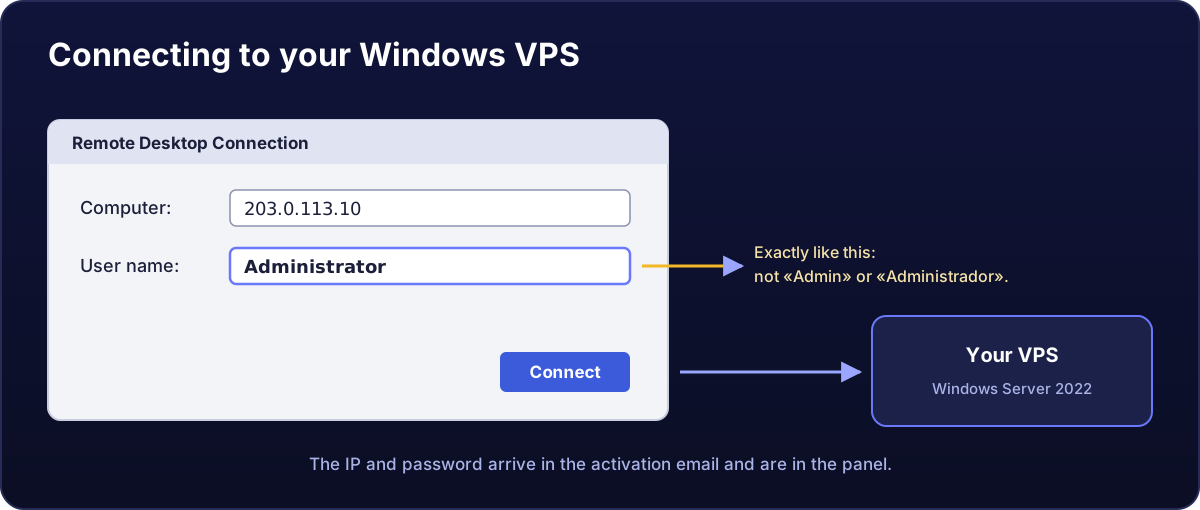
Connecting from Windows
- Press
Win + R, typemstscand hit Enter. - In "Computer", enter your server's IPv4 address and click Connect.
- Username
Administratorand the password from the email. - Windows will warn that it does not recognise the certificate. That is normal on a fresh server: tick "Don't ask me again" and accept.
From macOS, Linux, Android or iPhone
- macOS, Android and iPhone: install Windows App (formerly Microsoft Remote Desktop), add a PC with your server's IP and log in as
Administrator. - Linux: use
remminaorxfreerdp. For example:xfreerdp /v:YOUR_IP /u:Administrator.
If it will not connect
Before opening a ticket, check these three things in this order:
- Is it powered on? On the Overview tab the status must say it is running. If not, press Start.
- Is the IP right? Copy it from the panel rather than typing it by hand.
- Did you just create it? A first Windows install takes a few minutes to finish configuring itself. If the server was set up less than ten minutes ago, give it a moment.
If it still will not let you in, open the VNC tab: it connects you to the server's screen without going through the network, exactly as if you were sitting in front of it. From there you can see whether Windows is still booting, whether an update is running, or whether the firewall is blocking the port.
Change the
Administratorpassword as soon as you log in for the first time, and do not reuse one from elsewhere. A VPS with a public IP gets automated login attempts from day one.