If your server does not show a Backups tab, your plan does not include automatic backups from the panel: backups are up to you. The good news is that setting them up takes ten minutes and can save you months of work.
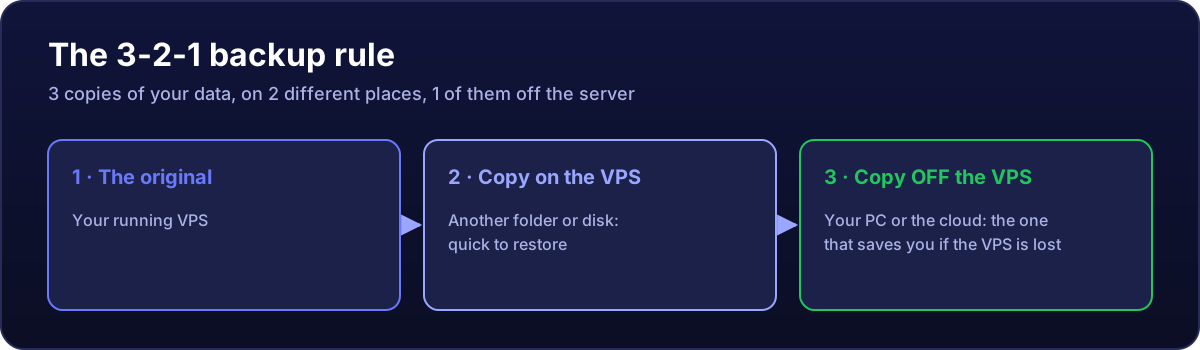
What to copy
- Game servers: the world or save, the configs and any resources or mods you changed.
- Databases: always with a dump (
mysqldump), never by copying the data folder while the server runs. - Websites and bots: the code, the
.envor config, and their database.
There is no need to copy the operating system: if the server is lost, it reinstalls in minutes. What cannot be recovered is your data.
Windows: automatic daily backup
Save this as C:\backups\backup.ps1 (change the paths to yours):
$date = Get-Date -Format "yyyy-MM-dd"
$dest = "C:\backups\$date"
New-Item -ItemType Directory -Force -Path $dest | Out-Null

# 1) The server files (example: FiveM)
robocopy "C:\FXServer\txData" "$dest\txData" /E /R:1 /W:1 /NFL /NDL

# 2) The database (adjust the MariaDB version in the path)
& "C:\Program Files\MariaDB 11.4\bin\mysqldump.exe" -u root -pYOUR_PASSWORD --all-databases --single-transaction --result-file="$dest\databases.sql"

# 3) Delete backups older than 7 days
Get-ChildItem "C:\backups" -Directory | Where-Object { $_.CreationTime -lt (Get-Date).AddDays(-7) } | Remove-Item -Recurse -Force
And schedule it every day at 05:00 (PowerShell as administrator):
schtasks /Create /TN "Daily backup" /SC DAILY /ST 05:00 /RU SYSTEM /TR "powershell -ExecutionPolicy Bypass -File C:\backups\backup.ps1"Linux: automatic daily backup
Create /root/backup.sh:
#!/bin/bash
DATE=$(date +%F)
DEST=/root/backups/$DATE
mkdir -p "$DEST"

# 1) The server files (example: Minecraft)
tar -czf "$DEST/minecraft.tar.gz" -C /home/minecraft server

# 2) The database, if you have one
mysqldump --all-databases --single-transaction > "$DEST/databases.sql"

# 3) Delete backups older than 7 days
find /root/backups -mindepth 1 -maxdepth 1 -type d -mtime +7 -exec rm -rf {} +
chmod +x /root/backup.sh
crontab -e
# and add this line at the end:
0 5 * * * /root/backup.shGet them off the server
A backup living on the same VPS does not save you if you lose the VPS. Take at least one off it:
- To your PC: on Windows, with the remote desktop shared drive; on Linux, with WinSCP or FileZilla (how).
- To the cloud, automatically: rclone runs on Windows and Linux and uploads to Google Drive, OneDrive, Dropbox or S3. Once set up with
rclone config, add something likerclone copy /root/backups mydrive:vps-backupsto the end of your script.
Check they can be restored
A backup you have never tried to restore is a hope, not a backup. Once a month, extract one into another folder and check everything is there.
Before you reinstall, make a big change or wipe, always take a manual backup.