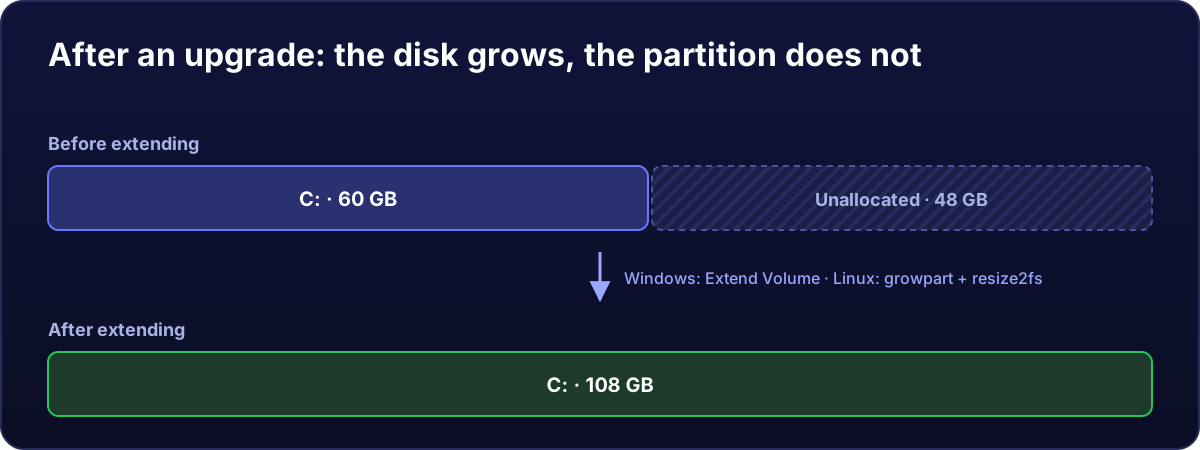
When you upgrade your plan, your virtual disk takes the new size, but the partition holding your system stays the same. The extra space sits "unallocated" at the end of the disk until you add it.
First of all, restart the server from the panel (Overview → Restart) so it also loads the new RAM and vCores.
Windows
- Press
Win + R, typediskmgmt.mscand Enter. - You will see your disk with the C: partition and, to its right, a black area of unallocated space.
- Right-click C: → Extend Volume → Next → Next → Finish. By default it takes all the free space.
Or in one command, in PowerShell as administrator:
Resize-Partition -DriveLetter C -Size (Get-PartitionSupportedSize -DriveLetter C).SizeMaxIt runs live, with no restart and nothing lost.
"Extend Volume" greyed out? Usually a small recovery partition sits between C: and the free space. Do not delete it blindly: open a ticket and we will sort it out with you. If you do not see the unallocated space, try Action → Rescan Disks first.
Linux
On many images the system grows the partition by itself at boot. Check first:
df -h /If / already shows the new size, there is nothing to do. If not, look at how the disk is laid out:
lsblkYou will see the disk (e.g. sda with the new size) and the system partition (e.g. sda1, smaller). With those names:
# Ubuntu / Debian: partition-growing tool
apt install -y cloud-guest-utils

# 1) Grow partition 1 of disk sda into the free space
growpart /dev/sda 1

# 2) Grow the file system
resize2fs /dev/sda1        # if it is ext4 (Ubuntu and Debian)
xfs_growfs /               # if it is XFS (Rocky Linux)
Mind the names: use whatever lsblk shows (it may be vda, or the system partition may be number 2 or 3). If lsblk shows lvm, the system uses logical volumes:
growpart /dev/sda 3                       # the partition holding LVM
pvresize /dev/sda3
lvextend -r -l +100%FREE /dev/mapper/ubuntu--vg-ubuntu--lv
Check the result with df -h /.
Not the other way round
The disk can grow but not shrink. If you plan to downgrade, tell us first in a ticket.