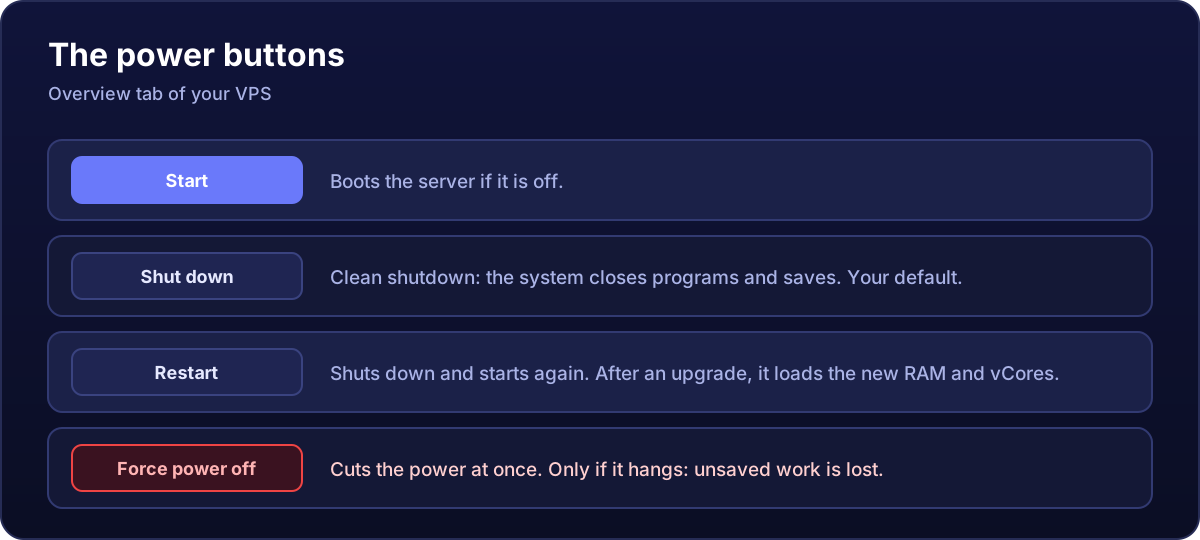
The buttons are under Services → your VPS → Go to server → Overview. They work even when you cannot get into the server over remote desktop or SSH.
Which one to use when
- Shut down asks the system to switch itself off, like clicking Shut down on your PC: it closes programs and saves. Use it whenever you can.
- Restart shuts down cleanly and boots again. Use it when the server behaves oddly or after installing something that asks for it.
- Force power off cuts the power at once. Only when the server responds to nothing: anything unsaved (the game server's world, a database mid-write) can be lost or corrupted.
- Start boots it when it is off. After a forced power off, it is the next step.
If "Shut down" does nothing
Shutting down depends on the system responding. Windows can take a couple of minutes, especially while installing updates (check the VNC tab first). If after 3-4 minutes it is still on and VNC shows no update in progress, then yes: Force power off and then Start.
After an upgrade, restart from here
When you upgrade your plan, the new RAM and vCores apply on the next boot from the panel. A restart from inside Windows or Linux is not enough, because the virtual machine stays running with the old configuration. Click Restart here and you are done. The new disk space has to be extended inside the system.
Before shutting down a game server
Ideally stop it from its own console (stop in Minecraft, quit in Rust, the stop button in txAdmin for FiveM) so it saves the world, and then shut down or restart the VPS. That way you lose nothing even if the system is slow to shut down.
The server status takes a few seconds to refresh after clicking a button. Do not click several times in a row: wait for it to change.