txAdmin is the web panel bundled with the FiveM server: with it you install the framework, see the console, restart, manage players and schedule restarts. This is the full route on a Windows Server VPS.
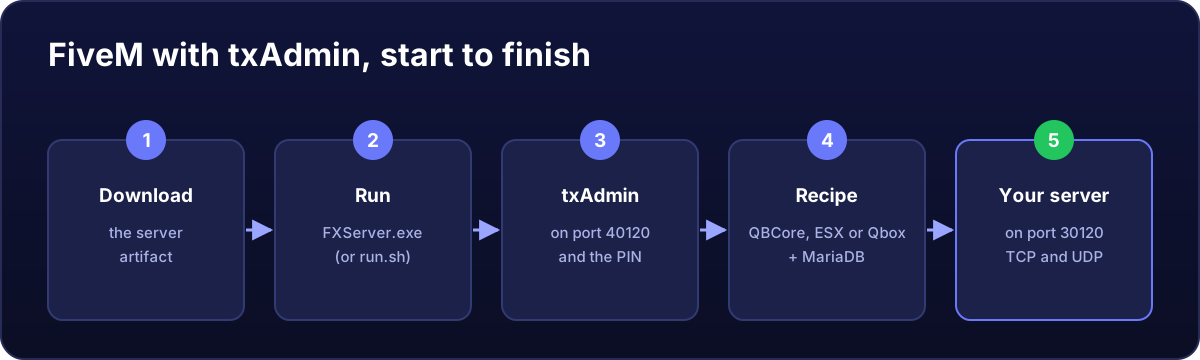
Before you start
- A licence key from portal.cfx.re (free).
- MariaDB installed if you will use QBCore, ESX or Qbox, which need a database: how to install it.
- 7-Zip to extract the artifact.
1. Download the server artifact
- On the VPS, open
https://runtime.fivem.net/artifacts/fivem/build_server_windows/master/. - Click the Latest Recommended link and download
server.7z. - Create
C:\FXServer\serverand extract the file there with 7-Zip.
2. Start FXServer
Run C:\FXServer\server\FXServer.exe. A console opens and shows a 4-digit PIN for txAdmin.
3. Log into txAdmin
- In the browser on the VPS itself, open
http://localhost:40120. - Enter the PIN, link your Cfx.re account and create the txAdmin admin password.
Better not to open port 40120 to the world: it is the control panel for your whole server. The safest option is to always use txAdmin from the VPS's own browser, over remote desktop (more in the FiveM ports guide).
4. Deploy your server
- Enter the server name and choose Popular Recipes.
- Pick the framework: QBCore Framework, ESX Legacy or Qbox Framework (or FiveM Basic Server for an empty one).
- When asked, paste the licence key and the database details (user, password and name).
- Click Run Recipe and wait until it downloads and installs everything. Then Save & Run Server.
5. Open the ports
FiveM uses 30120 on both TCP and UDP. In PowerShell as administrator:
New-NetFirewallRule -DisplayName "FiveM TCP 30120" -Direction Inbound -Protocol TCP -LocalPort 30120 -Action Allow -Profile Any
New-NetFirewallRule -DisplayName "FiveM UDP 30120" -Direction Inbound -Protocol UDP -LocalPort 30120 -Action Allow -Profile Any
On Spain servers, the panel's Security tab also has the one-click FiveM AntiDDoS filter.
6. Join the server
In FiveM, press F8 and type connect YOUR_IP:30120. The server can take a few minutes to appear in the public list.
Next
- Make it start by itself when the VPS restarts.
- Exclude the folder from Defender so it loads faster.
- Daily backups of
txDataand the database. - If something is wrong: my server does not show up or will not let players in.