An MTR sends packets to your server continuously and records, for every router along the way, how many are lost and how long they take. That shows where the problem is: at home, at your ISP, along the route or at the server.
Run it while the problem is happening: an MTR taken when everything is fine shows nothing.
Windows
With WinMTR (free; the maintained version is called WinMTR Redux and lives on GitHub):
- In Host, type your VPS's IP.
- Click Start and leave it at least 2 or 3 minutes.
- Click Stop and then Copy Text to clipboard.
- Paste it into your ticket.
Without installing anything, with Windows' own tool, in a PowerShell or CMD window:
pathping -n 203.0.113.10It takes a few minutes to finish; copy everything it prints.
Mac
brew install mtr
sudo mtr -rwc 100 203.0.113.10
Linux
apt install -y mtr-tiny
mtr -rwc 100 203.0.113.10
With -c 100 it sends 100 packets and prints the report at the end.
How to read it
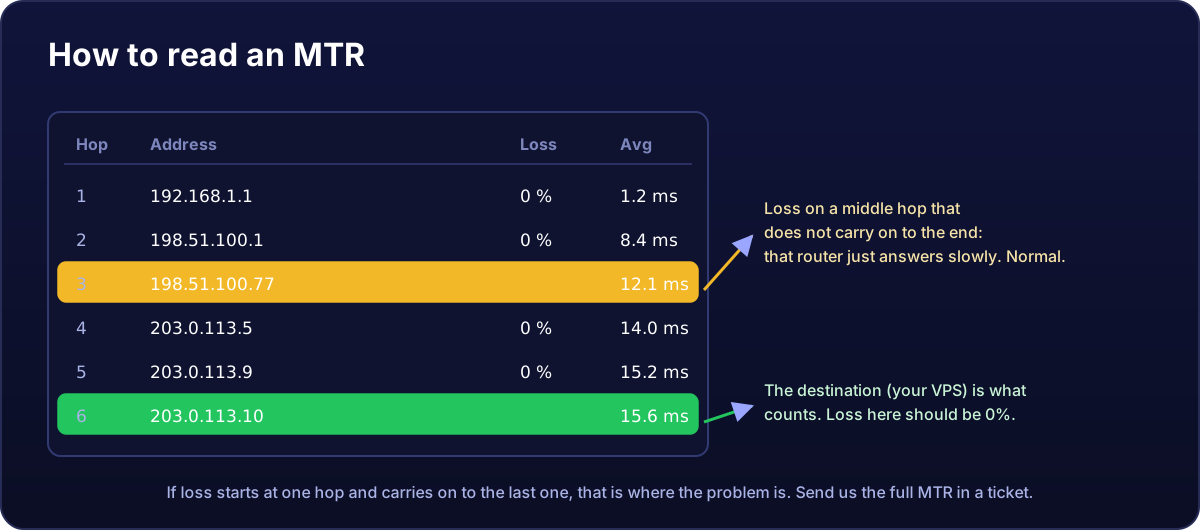
- Look at the last hop first (your VPS). With 0% loss and a steady average, the network is fine.
- Loss on a middle hop that does not continue afterwards: not a problem. Many routers answer these probes with low priority but forward normal traffic just fine.
- Loss that starts at one hop and carries on to the end: that is where the problem is. If it is in the first hops, it is usually your Wi-Fi, your router or your ISP.
- Latency that jumps at one hop and stays high: the route gets longer or congested there.
Sometimes we will ask for one the other way round
From the VPS to your home connection. You will need your public IP (any "what is my IP" website shows it) and the same command on the VPS, with your IP as the destination.